
Hi guys,
Today, I am going to show you, how to play PS3 games on PC using the RPCS3 Emulator. It is very easy to set up and play PS3 Games.
I got to know about this emulator some time ago and I thought I should give it a try. Initially, I was not sure whether it would work or not. But at last, it worked.
I found it very easy to set up and play PS3 games. Although this emulator is still in the development stage so you may encounter some errors. I haven’t got any errors.
In this tutorial, I am using the PS3 PKG file. This emulator also supports dumping ps3 disc and ISO Images.
Prerequisites:
Important Tip
Before downloading any game make sure it comes under the playable section of rpcs3 compatibility. To check which game you can play using RPCS3 click HERE. Games that are showing in the Playable Section are actually the games that are in running state and can be played using RPCS3 Emulator.
After downloading everything
1. Extract the RPCS3 File.
2. Open the folder and double-click on the rpcs3 icon.
3. Go to File -> Install Firmware and select the PS3 Update file.
4. Once the installation gets completed.
5. Go to File -> Install .pkg and select the .pkg file and press Open.
6. Once installation is done.
7. Copy your .rap file in dev_hdd0 -> home – > 00000001 -> exdata folder.
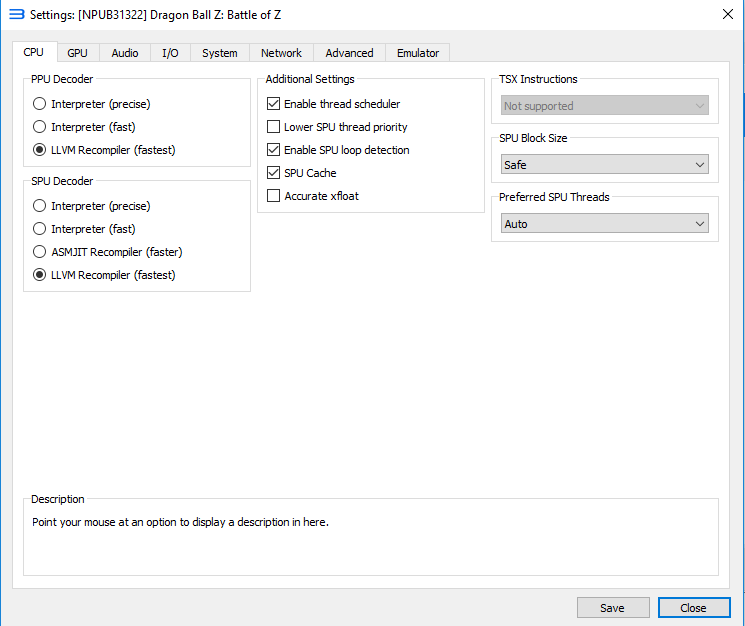
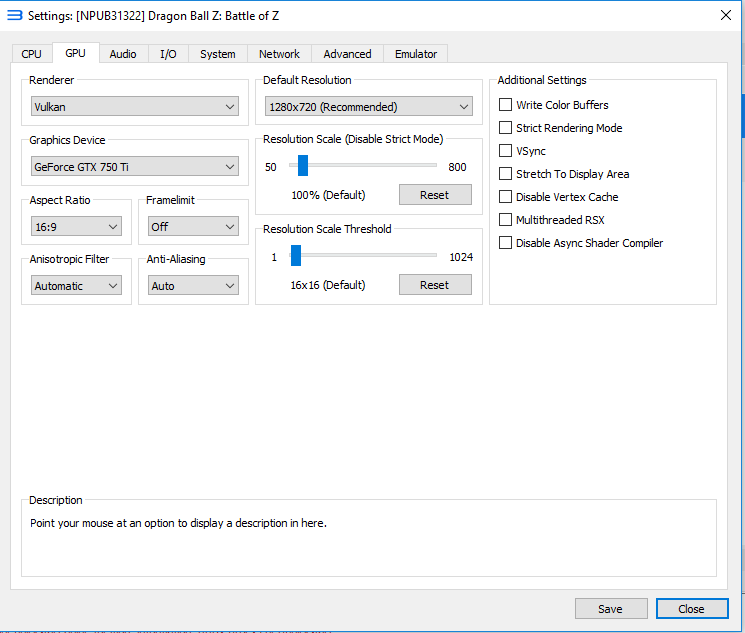
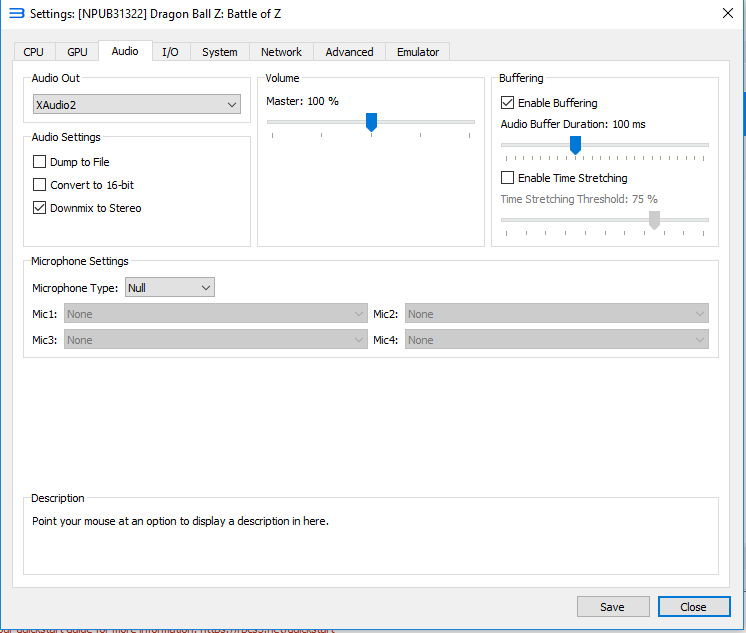
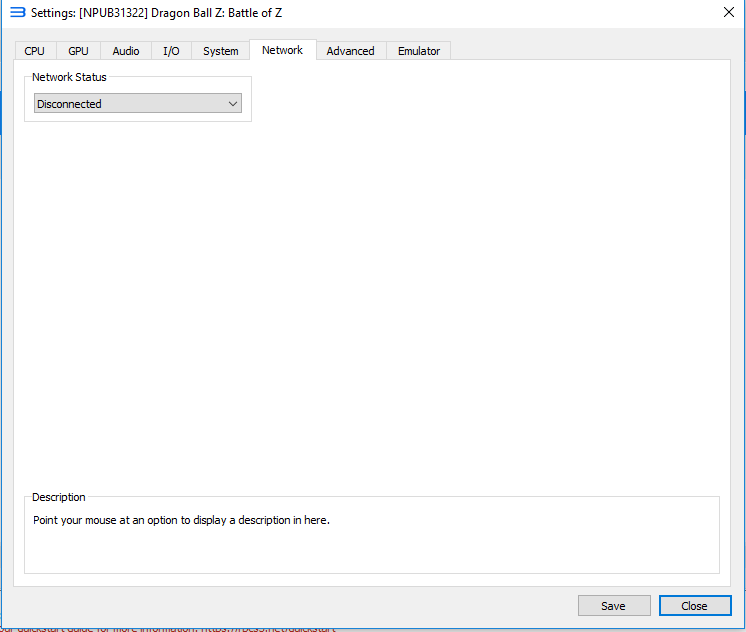
8. In your RPCS3 Emulator right click on the game and click on configure a new window will be opened. In this window, you configure CPU, GPU, etc.
I am using the following settings. You need to select your GPU. Click on GPU Tab and then select the renderer. I have an external graphic card so I am using Vulcan as renderer. And then select the Graphics device. I have a GTX 750Ti Graphics card.
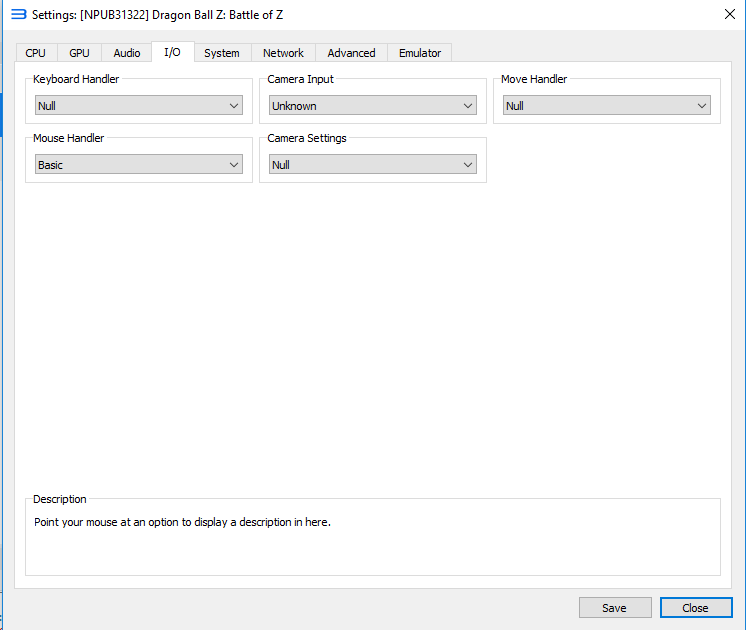
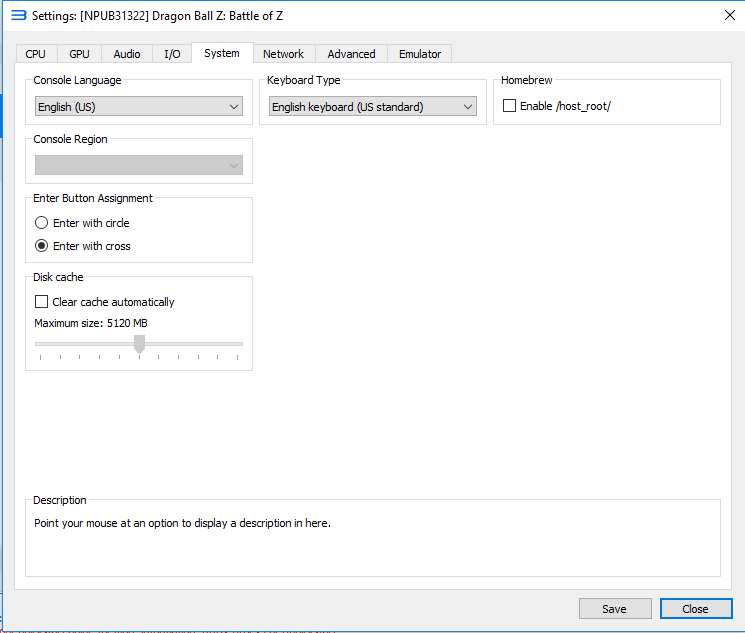

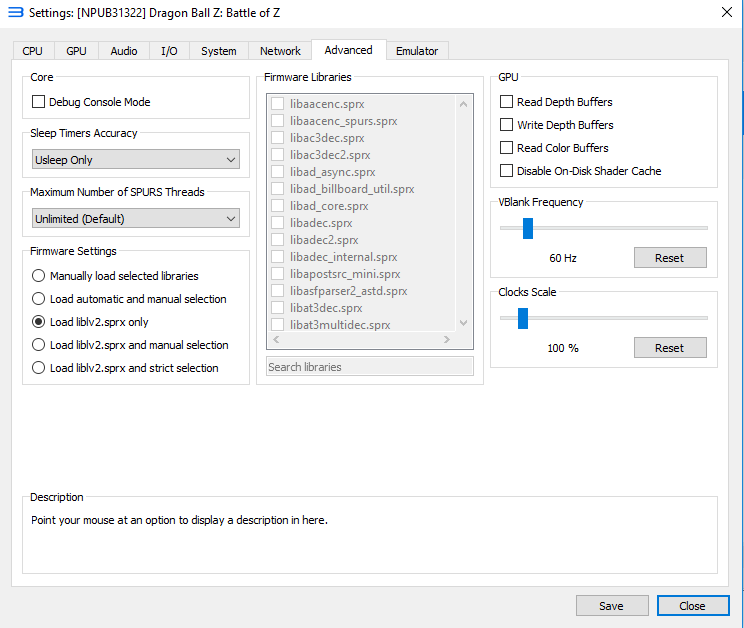
To Configure Gamepad Right Click on your game and then click on Configure pads.
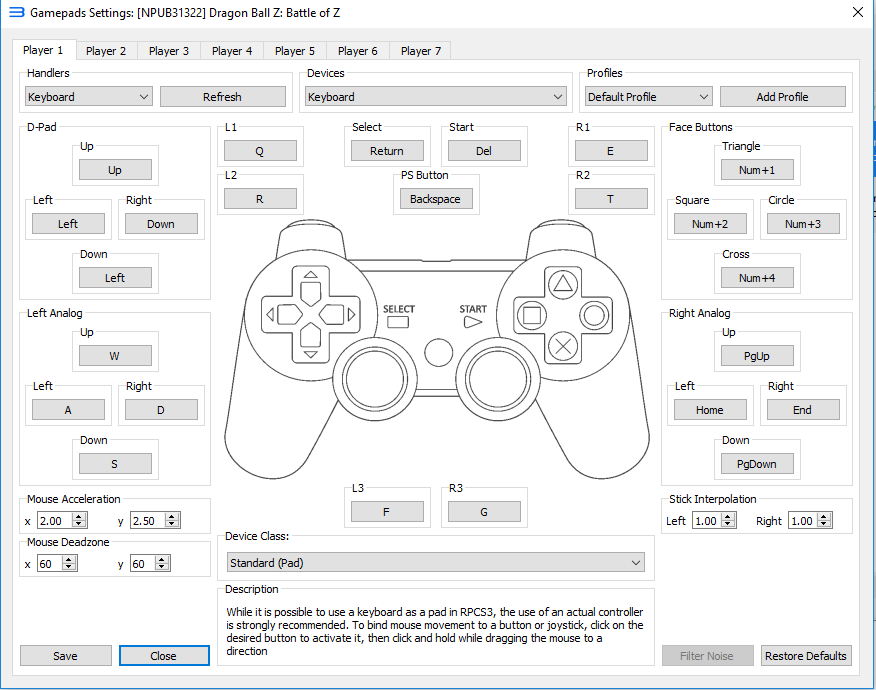
Once everything is completed the right click on the game and click on Boot with custom configuration to start the game.
Comments
Post a Comment